The customer ordering site
What this is for
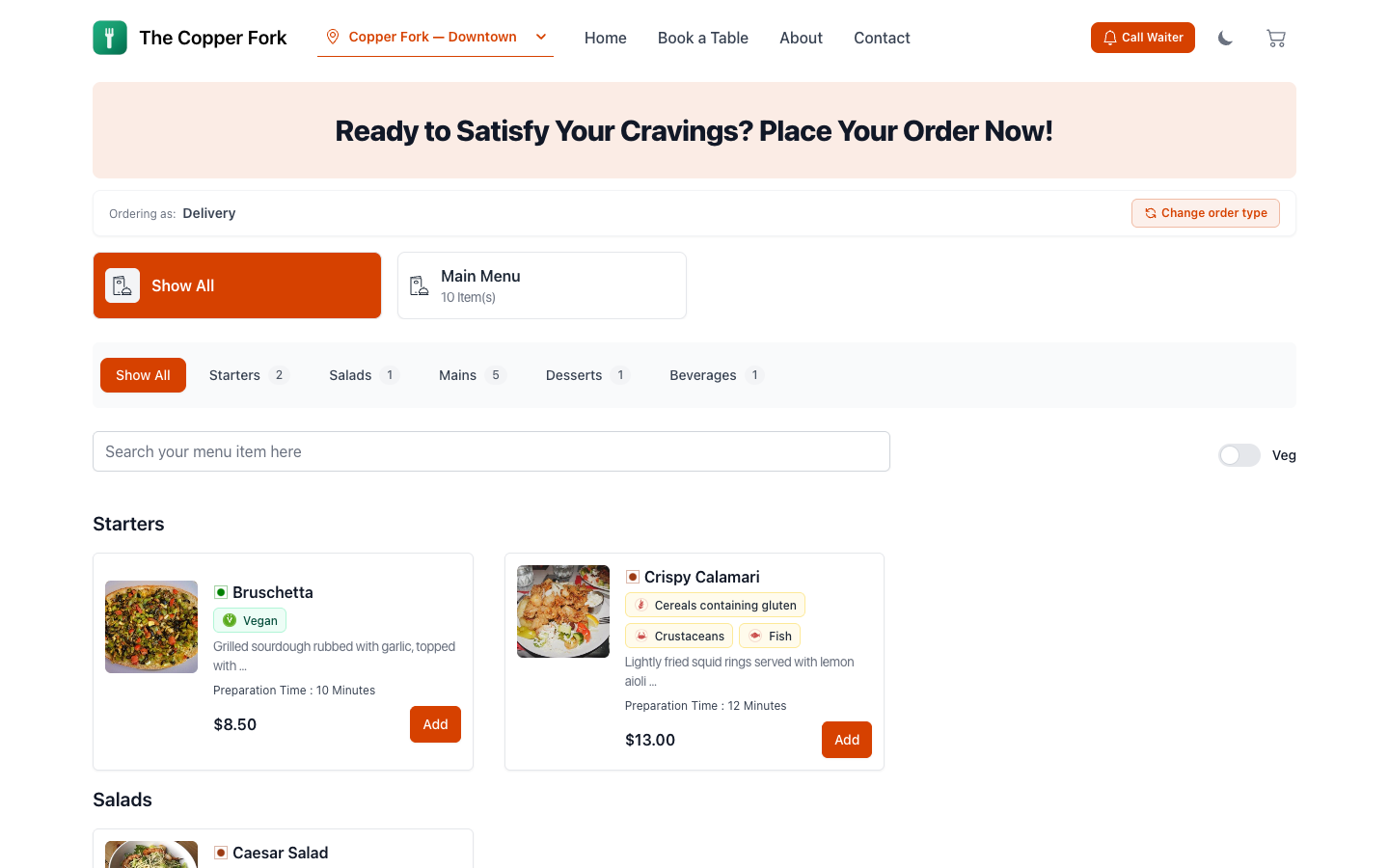
Every Restodesk restaurant gets a public web address showing its live menu. No app to download, no account needed to look.
It's one site doing three jobs:
- A menu anyone can read — link it from social media, your Google listing, or an email.
- QR ordering at the table — a guest scans the code, sees the menu, and orders from their seat.
- Ordering from anywhere — delivery and pickup orders placed at home.
Whether guests can only browse or can actually order is yours to decide.
What a guest sees
Your menu as you built it: categories, items, photos, descriptions, prices, sizes and add-ons. Allergen information appears where you've recorded it — see Allergen labelling.
They pick an order type, build a basket, and check out. Orders arrive in your back office as Placed, and someone needs to confirm them. See Managing orders.
Ordering from a table
A guest scanning the QR code on their table gets the same site, but it already knows which table they're at — so the order arrives assigned, and the kitchen ticket says Table 7 without anyone typing it.
They can also call a waiter from the same screen. See Call-waiter requests.
What you control
Under Settings › Customer Site:
- Which order types guests can choose. Each order type has Enable From Customer Site — so you can offer pickup online and keep delivery to phone calls. See Order types.
- Which items appear. Items have Show on Customer Site, for things you sell in-house but don't want listed — staff meals, wholesale lines, off-menu specials.
- Whether photos show. They can be hidden if your images aren't ready.
- The language the site is presented in.
- Whether reservations can be booked. See Reservation rules and availability.
Payment
Guests can pay online where you've connected a payment gateway, or pay on collection or delivery.
Where you accept bank transfers with a receipt uploaded, the order waits at Payment Verification until a human checks it. See Taking payment.
Opening and closing
The site respects whether you're open. When you're closed, guests see that rather than placing an order nobody will cook.
That comes from your operating shifts, or from the manual start/stop control if you'd rather drive it by hand. See Opening hours and shifts.
Use the manual close when something goes wrong mid-service — the kitchen is swamped, a supplier didn't come, the fryer died. It stops new orders from every channel at once.
Making it work
- Photos matter more here than anywhere else. On the POS a cashier knows what the dish is. Here the photo is the sales pitch.
- Descriptions do real work. "Grilled sea bass" sells less than one sentence about how it's cooked.
- Keep availability honest. An item that's sold out should be switched to unavailable — the fastest way to lose an online customer is a call telling them what they ordered isn't coming.
- Order it deliberately. Item order follows Menu › Menu Organizer. Put what you want to sell where people look first.
- Order it yourself, once a month. Place a real order from a phone, as a guest. You'll find things no settings screen shows you.
Good to know
- The site shows the menu for a branch. Different branches show different menus and prices.
- Changes are live — a price edited on the menu is the price a guest sees on the next page load.
- Guests don't need an account to browse or to order. Signing in is optional and adds saved addresses and re-ordering — see Customer accounts and addresses.
- If your site shows nothing, the usual causes are: no menu marked available, items hidden from the customer site, or no order type enabled for it.