Kitchen tickets
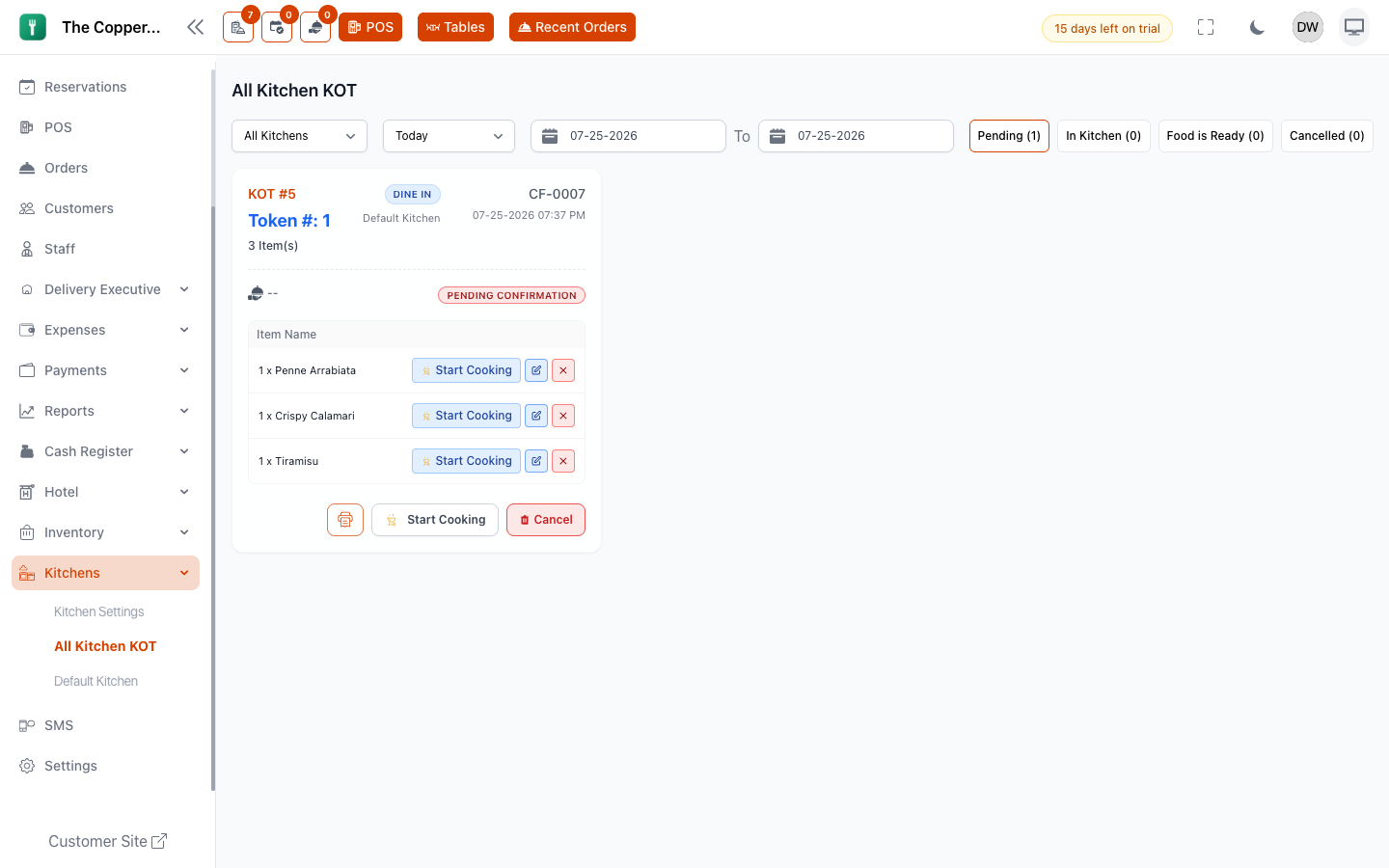
What this is for
A KOT — Kitchen Order Ticket — is what the kitchen actually cooks from. It carries the items, the quantities and the special instructions, and nothing about money.
Sending a KOT is the moment an order becomes food.
What's on a ticket
A ticket prints as:
Kitchen order ticket
- 2Grilled Sea BassNo capers
- 1Truffle Arancini
- 1Ribeye 300gMedium rare
Deliberately plain. No prices, no totals — the kitchen doesn't need them, and leaving them off keeps the ticket short enough to read across a hot pass.
Sending one
From the POS, select KOT, or KOT & Print to also print a copy at the till.
Add items to a running order and send another KOT — Restodesk sends only the new items. It doesn't reprint what's already cooking. That's why an order can have KOT #1, #2 and #3: three rounds of ordering at the same table.
An order that hasn't been sent shows Waiting KOT — "not sent to kitchen". If food should be happening and that's what you see, that's your answer.
Kitchens
A restaurant with a grill, a cold section and a bar doesn't want one ticket printing in all three places.
Restodesk lets you define kitchens and assign menu items to them. When an order is sent, each kitchen gets a ticket for only the items that belong to it: the grill sees the steaks, the bar sees the drinks.
- Assign items to a kitchen from the menu item, or in bulk during a bulk upload.
- Assign a printer to each kitchen under Settings › Printers — the printer setup asks which kitchens it serves.
This is why a cook may see only part of an order on their ticket. It's routing, not an error.
More than one kitchen is the Multiple Kitchens add-on. Without it you have a single kitchen and every ticket carries the whole order — see Kitchens and stations.
Ticket statuses
A ticket moves through:
| Status | Meaning |
|---|---|
| Pending | Created, waiting to be picked up. |
| Cooking | Being prepared. |
| Ready | Done, waiting to be carried. |
| Served | Delivered to the guest. |
| Cancelled | Stopped. |
Kitchen staff move tickets along — from the kitchen screen, or from the order.
Item-level status
By default a whole ticket moves at once. Turn on Enable Item Level Status under Settings › KOT and each dish carries its own status: Start Cooking, Mark as Ready, with Undo if something is marked early.
Worth it when courses leave the kitchen at different times, or when several sections work the same ticket. Unnecessary overhead in a small kitchen sending complete tables at once.
KOT settings
Under Settings › KOT:
| Setting | What it does |
|---|---|
| Default KOT Status | What a new ticket starts as. |
| Default Customer KOT Status | What tickets from customer orders start as. |
| Enable Item Level Status | Per-dish statuses instead of per-ticket. |
The two defaults are separate for a reason. A ticket a cashier sent has been seen by a human, so it can start as Cooking. One that arrived from a guest's phone hasn't — start those at Pending so nothing gets made before anyone has accepted the order.
Cancelling from a ticket
Cancel KOT stops a whole ticket. Cancel KOT Item stops one dish. Both need a reason, both are recorded, and neither can be undone.
See Refunds and cancellations.
Printing
Tickets print through your configured printers — see Receipts and printers.
If nothing prints:
- Check the printer is on and has paper.
- Check Settings › Printers shows it as online.
- Check the printer is assigned to the right kitchen — a ticket routed to a kitchen with no printer goes nowhere.
- If you're using browser popup printing, allow pop-ups for the site.
For a paperless kitchen, the kitchen screen replaces printing entirely — it's standard in every plan.
Good to know
- Tickets are per branch.
- Special instructions live on the item, which is where the person cooking that dish will see them. An order-level note is easy to miss on a busy ticket.
- Ticket numbers are per order — KOT #1, #2, #3 within order #0042.
- Offline, tickets still print, and the KOT number shows as Pending until the order syncs. See When the internet drops.