Managing orders
What this is for
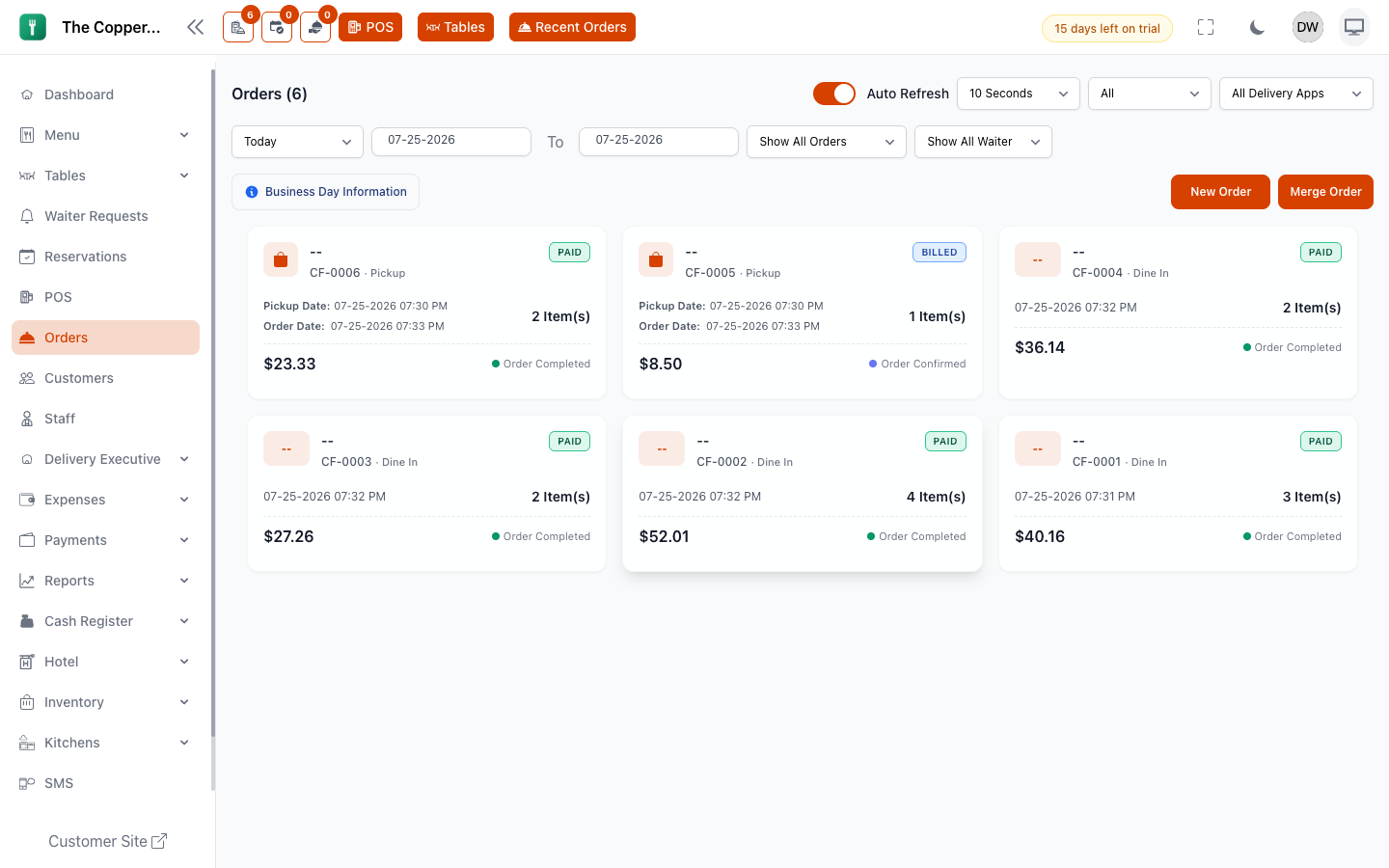
The POS is where orders are made. Orders is where they're watched — every order in the branch, whatever route it came in by, in one list.
It's the manager's screen. If you run a shift, keep it open.
What's on it
- Active Orders — everything still moving. The list to watch during service.
- Today's Orders — the whole day, including finished ones.
- Filters by status, order type, date and table.
Each row shows the order number, type, table or customer, status, payment status, and total.
Orders that don't come from the POS
Plenty won't:
- Customer site — someone ordering from your web menu.
- QR ordering — a guest at a table ordering from their phone.
- Kiosk — a self-service terminal, where you have one.
They arrive here as Placed and need confirming. A New order received notification appears — tap View Order to open it.
That's the screen's real job: making sure an order placed by a guest at 7:42 pm is seen by a human at 7:42 pm.
Changing an order's status
Open an order and use Set Order Status. The available steps depend on the order type — see the order journey.
Most statuses move on their own as staff do their work. You'd set one by hand when:
- Confirming an order that came in from outside.
- Correcting something marked wrongly.
- Closing an order the floor forgot to complete.
Working an order
From the order you can:
| Action | Notes |
|---|---|
| Add Items | Opens the POS on this order. |
| Add Payment | Take money against it. |
| Add Customer Details | Attach or correct the customer. |
| Set Order Status | Move it along. |
| Create KOT | Send it to the kitchen — for an order that arrived without one. |
| Assign a delivery executive | Delivery orders. Only executives who are online are offered. |
| Cancel Order | See Refunds and cancellations. |
| Receipt or KOT. |
An order with no kitchen ticket says so: "This order has no KOT. Create one to send it to the kitchen." That's the one to act on fastest — nobody is cooking it.
Order numbers
Every order gets a number, and you can control the shape of it under Settings › Orders.
| Setting | What it does |
|---|---|
| Enable Order Prefix Settings | Turns custom numbering on. Off means plain numbers — #23. |
| Prefix Type | A custom prefix, the current date, or branch plus date. |
| Custom Prefix | Your own short code — ODR, BR01, CF. |
| Separator | What goes between the parts. |
| Number Digits | How many digits — 007 versus 7. |
| Reset Sequence Daily | Start again from 1 each day. |
A live Preview shows the next number as you change the settings.
Worth thinking about for a few minutes:
- Branch prefixes are essential on multi-site.
CF-0042andTM-0042are two different orders. - Daily reset keeps numbers short and readable but means numbers repeat across days — fine when you always have the date too.
- Enough digits that you don't roll over mid-year.
Decide once. Changing numbering later makes two eras of orders that sort differently.
Token numbers
For counter and pickup service, an order can carry a token number — the number called out or shown on the board when food is ready.
Enable it per order type under Settings › Orders › Token Number Settings. Tokens reset daily and are unique per order type.
Show Order Number on Board displays the full order number alongside the token on the customer order board. See Customer displays.
Daily order limits
Some plans cap orders per day. When you hit it:
Order Limit Reached. You have reached your daily order limit.
The message shows current orders against the limit. Nothing is lost; you can't create new orders until the limit resets or the plan changes.
Good to know
- The list is scoped to your branch. Check the branch before you conclude an order is missing.
- Filters remember what you set. An empty list is often a filter, not an empty day.
- Report boundaries follow your operating shifts, not midnight — an overnight shift's orders belong to the day it started. See Opening hours and shifts.
- Deleting an order removes it from the record. Cancel instead unless it was never real.