Building a bill
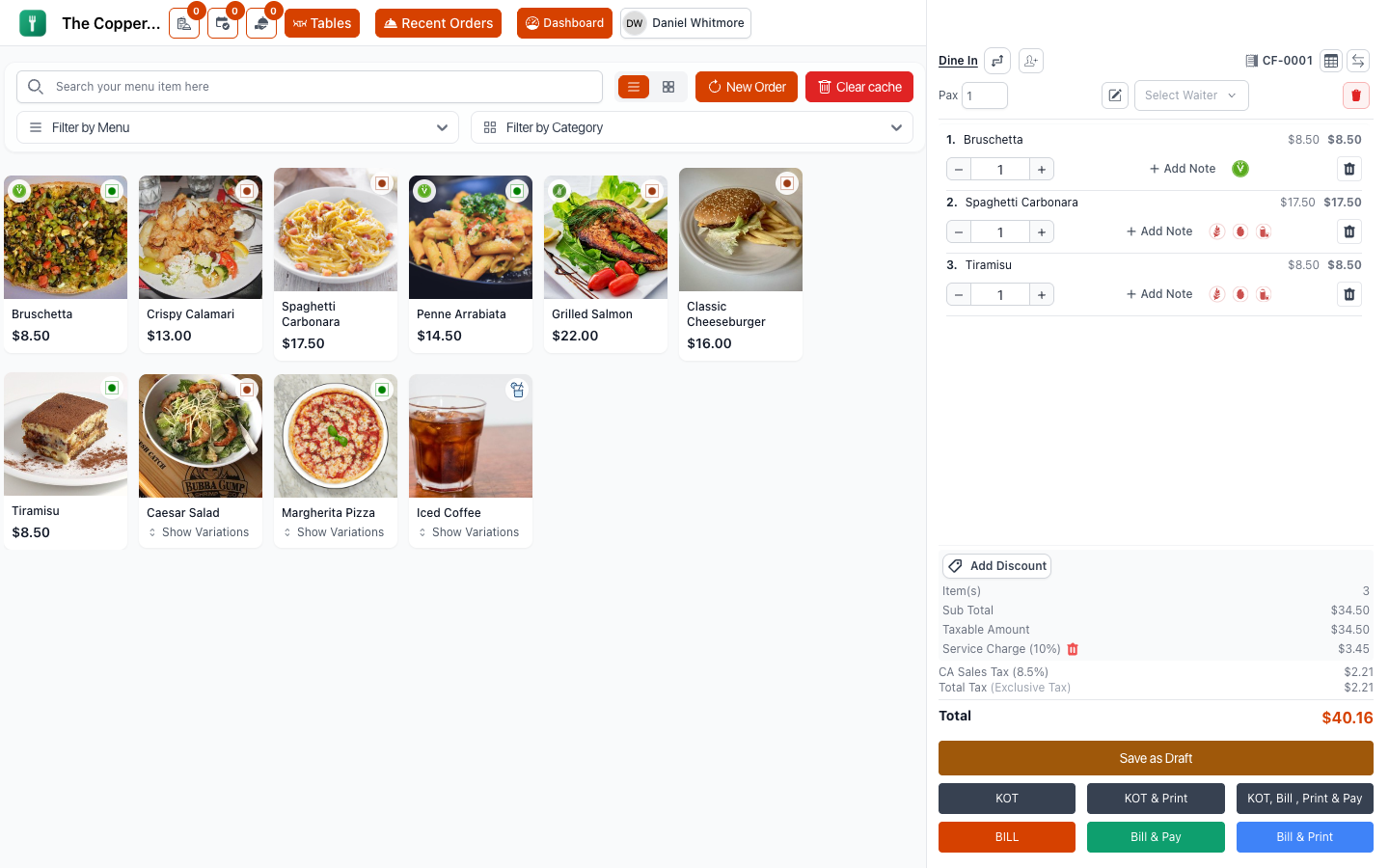
What this is for
Taking what the table said and turning it into an order the kitchen can cook and the guest can pay for.
Starting the order
- Open POS.
- Choose the order type.
- For dine-in, assign the table and enter Pax — how many people are eating.
Pax isn't bureaucracy. It drives your average-spend-per-head figure, and that number is worth more than almost anything else in your reports. Enter it accurately, every time.
If you enter more guests than the table seats, Restodesk warns you and drops the number to the table's capacity. Change the table or adjust the capacity if the squeeze is real.
You may also be asked for the waiter who took the order.
Adding items
Tap a category, then tap an item. It lands on the bill.
- More than one? Tap it again, or use the plus and minus on the bill line.
- Wrong item? Remove it from the bill line.
- Can't find it? Use search rather than hunting through categories. Search is faster than memory once the menu passes about thirty items.
An item that doesn't appear at all is usually marked unavailable on the menu, not missing. See Adding menu items.
Sizes and options
If an item has variations — Small, Medium, Large; 330 ml, 500 ml — Restodesk asks which one as you add it. Each variation carries its own price.
If it has modifiers — extra cheese, no onions, oat milk, well done — you'll be offered those too. Modifiers can be free or priced; a priced modifier is added to the line.
Both are set up on the item itself. See Modifier groups and modifiers.
A useful habit: pick the variation and modifiers as you add the item, not afterwards. Going back to change a line that's already gone to the kitchen is a cancellation, not an edit.
Notes for the kitchen
Two different notes, and they go to different places:
- Item note / special instructions — attached to one dish. "No coriander." "Sauce on the side." This prints on the kitchen ticket next to that item, which is what makes it get read.
- Order note — attached to the whole order. "Birthday — bring the cake after mains." "Allergy at this table, check with chef."
Put allergy and dietary instructions on the item, where the person cooking that dish will see it. An order note at the top of a busy ticket is easy to miss.
Sending it to the kitchen
Select KOT — Kitchen Order Ticket.
That's the commitment. A ticket prints in the kitchen or lands on the kitchen display, and the order moves to Preparing.
Until you send the KOT, the order shows as Waiting KOT — "not sent to kitchen". Nothing is being cooked.
Use KOT & Print if you also want a copy at the till.
Adding to an order already sent
Second round of drinks, an extra side, a dessert ordered later — just add them to the same order and send another KOT. Restodesk sends only what's new to the kitchen; it doesn't reprint the whole ticket.
The banner at the top tells you you're adding to an existing order and how many tickets have already gone. That's your confirmation you're on the right table.
Removing something already sent
Once a KOT has gone, removing an item is a KOT item cancellation, not a deletion:
- Find the item on the order.
- Select Cancel KOT Item.
- Choose a cancel reason, or pick Other and type one.
- Confirm.
It can't be undone, and it's recorded — reason, and who did it. That's the point. Items vanishing from bills with no trail is how restaurants lose money without ever knowing.
Set up your standard reasons under Settings › Cancellation Reasons so staff pick from a list instead of typing.
Changing the table
Select Change Table on the order, pick the new one, confirm. Restodesk shows the current table and the one you're moving to before committing.
Use it when a party moves, or when an order was started on the wrong table — which happens, and is much better fixed than worked around.
Saving without sending
Save as Draft parks an order. Nothing goes to the kitchen, and it doesn't get an order number yet — the number is assigned when it stops being a draft.
Drafts are useful for:
- A phone order you're taking while doing something else.
- A large group's order being built over several minutes.
- Handing an order to the next person on shift.
Reopen the draft from the POS or from Orders and carry on where you stopped.
When the bill is locked
Some things stop being editable, and the message says which:
| Message | What to do |
|---|---|
| You cannot remove items from a paid order | Refund instead. See Refunds and cancellations. |
| You cannot add or remove items from a payment due order | Collect the payment first, then start a new order for anything extra. |
| You cannot modify a paid order | It's settled. New items go on a new order. |
| This order is cancelled and cannot be modified | It's closed. |
Good to know
- Prices come from the menu at the moment you add the item. Changing a price later doesn't rewrite open bills.
- An item's price can differ by order type, so the same dish may total differently on delivery than dine-in. That's configuration, not a fault.
- Menu item photos can be hidden on the POS to fit more items on screen — Settings › Menu Item Images. Worth doing on a small tablet.
- Clear cart empties the current order. It asks first, and it doesn't touch anything already sent to the kitchen.