Adding menu items
What this is for
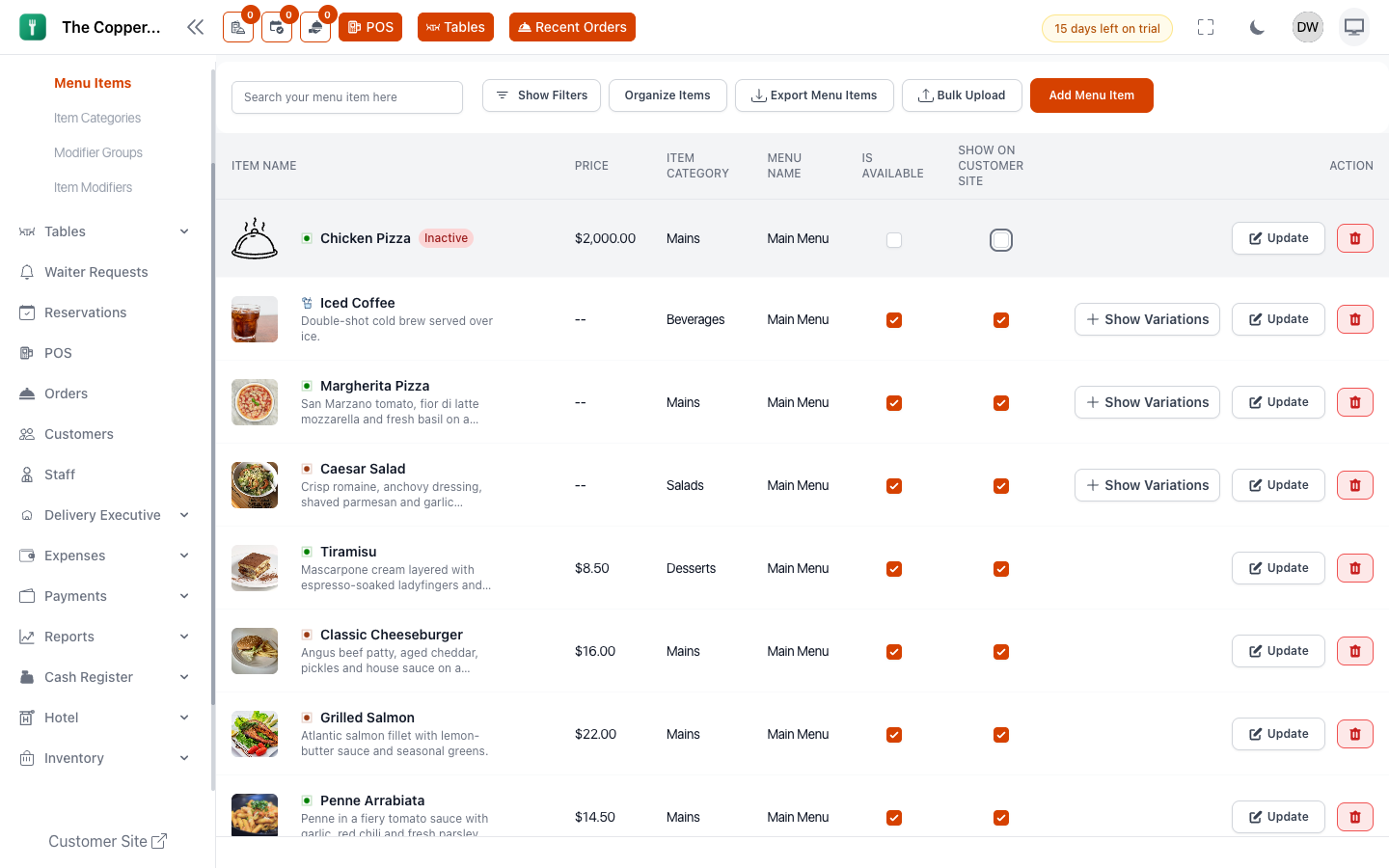
The dish itself. This is the longest form in Restodesk, but most of it is optional — you can add a sellable item with four fields and come back for the rest.
Before you start
You need a menu and at least one category. See Item categories.
Adding an item
- Go to Menu › Menu Items.
- Select + Add Item.
- Fill in the essentials:
- Item Name
- Item Category
- Menu
- Price
- Save.
It's now sellable. Everything below is refinement.
The rest of the form
Description and photo
Item Description shows to customers on your ordering site and kiosk. It's wasted on the POS, so write it for the guest.
Item Image accepts JPEG, PNG, JPG, GIF, SVG and WEBP, up to 2MB, and 200 × 200 pixels is the recommended size. Square images work best — anything else gets cropped.
Photos are worth the effort on anything sold through QR ordering or a kiosk; guests order more from a menu with pictures. They matter far less for items only rung up by staff.
Item type
Pick one: Veg, Non Veg, Contains Egg, Halal, Drink or Other. This shows as a marker next to the item for staff and guests.
Additional options
Gluten-free, Sugar-free, Kosher and Vegan can be ticked in any combination. They appear with the item on the POS and on your customer ordering site.
Allergens
The 14 EU Annex II allergen categories. Covered separately in Allergen labelling.
Preparation time
How many minutes this takes to make. It feeds the time estimates customers see.
Variations
Turn on Has Variations when the same dish comes in sizes, each with its own price.
- Enable Has Variations.
- Select Add Variations.
- Give each a Variation Name — Small, Medium, Large — and a price.
When staff or a guest add this item, they choose a variation first.
Use variations for sizes of the same thing. For extras and choices, use modifiers instead.
Tax
Choose whether the price you typed includes tax or has tax added to it, then select which taxes apply. Restodesk shows you the breakdown as you type — base amount, tax, total — so you can see exactly what a guest will pay before you save.
Getting this wrong is expensive and easy to miss, so check the breakdown on your first few items.
Availability
- Is Available — off takes it out of the POS, the QR menu and the kiosk immediately, without deleting it. This is your "86 it" switch.
- In Stock — whether you currently hold it.
- Show on Customer Site — sell it in-house but keep it off your online menu.
Kitchen
Kitchen Type routes the item to a station — grill, bar, pastry — so each screen or printer only gets its own work. Relevant if you have the Kitchen Display add-on or more than one printer.
Sort order and translations
Sort Order controls where it sits in its category; Menu › Menu Organizer is easier for bulk reordering. Translations let you enter the name and description in your other languages.
Taking something off the menu tonight
Set Is Available to off. It disappears from every ordering screen straight away, and you can turn it back on tomorrow. Don't delete it — deleting loses the item's sales history.
Good to know
- Items belong to a branch. See Adding branches for copying between locations.
- To add many items at once, use Bulk-uploading your menu.
- Filters at the top of the item list let you narrow by type, category and availability, which is the fastest way to find one dish among hundreds.